
New Leads Every Morning: A Lead Machine With Claude and Google Sheets, No Code
A complete guide: a Google Sheet, Claude connected to it, and a scheduled task that finds ten new businesses every morning, scores them, and writes each one a personal WhatsApp message that you send yourself.
Tom Cohen · · 8 min read
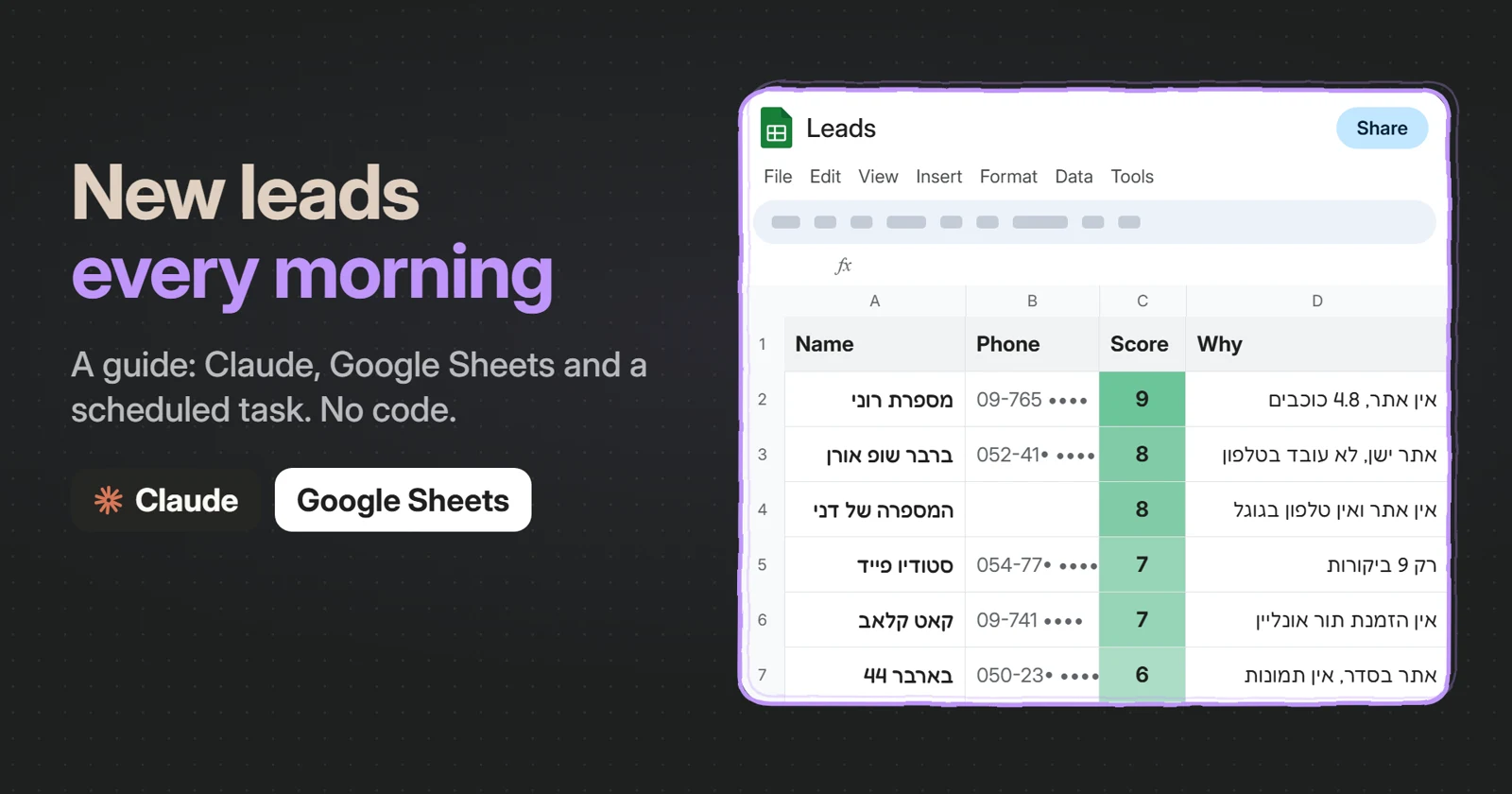
Some tools charge a monthly fee to hand you a list of businesses and phone numbers. A few months ago I built myself a system that does this for me. Every morning it finds new businesses in Kfar Saba and Hod Hasharon, scores each one by how much it needs what I do, and drafts a personal message. I go through the list and press send.
My system is built in code. This post shows a version anyone can set up without writing a line of code, with a Claude subscription and a Google Sheet. It takes about fifteen minutes.
What you’ll have at the end
- A sheet called Leads that fills itself every morning with ten new businesses of the type and in the city you chose.
- For each business: name, phone, Google Maps link, website if it has one, rating and number of reviews.
- A score from 1 to 10 for how much the business needs what you sell, and one sentence on why.
- A short WhatsApp message for every business scoring 7 or higher, and a link that opens the chat with the message already typed.
- No duplicates. Before it searches, the task reads the sheet and skips businesses that are already in it.
The messages don’t send themselves. You read them, fix them if needed, and press send. I’ll explain below why that matters.
What you need
- A paid Claude plan. Scheduled tasks are available on paid plans (Pro, Max, Ultra, Team and Enterprise). The free plan won’t do.
- A Google account.
- Fifteen minutes, plus a few minutes the next morning to check the first run.
Anthropic updates Claude’s interface often, so your button names may differ a little from the ones here. The structure stays the same.
Step 1: the sheet
- Open sheets.new. That creates a new blank sheet.
- Rename it Leads. The task looks for the sheet by this name.
- Paste the header row into cell A1:
Name,Phone,Score,Why,WhatsApp message,WhatsApp link,Google Maps,Website,Rating,Reviews,Status,Found on- The whole row lands in one cell. Google Sheets usually offers Split text to columns right away. If it doesn’t, choose Data → Split text to columns. Each header now sits in its own column, A to L.
Three more things you don’t have to do, but that make the sheet much nicer to work with:
- Freeze the first row: View → Freeze → 1 row. The headers stay put when you scroll.
- Colour by score: select column C and choose Format → Conditional formatting → Color scale. High scores will stand out.
- A status dropdown: select column K and choose Insert → Dropdown with New, Asked, Said yes, Not interested.
The column order matters. The task writes each row in this order. If you change it, change the prompt too.
Step 2: connect Google Sheets to Claude
Claude can’t see your Google account until you connect it. You do this once:
- In Claude, go to Customize → Connectors (direct link: claude.ai/customize/connectors).
- Click + next to Connectors and find Google Sheets. It’s part of the Google Docs, Sheets and Slides set.
- Click Connect, sign in with the Google account that owns the sheet, and approve.
Note that Google Sheets is a separate connector from Google Drive. The Drive connector reads files. The Sheets connector is the one that can edit them, and that’s what the task needs.
A one-minute test: open a normal chat, turn the connector on with + → Connectors, and write:
Open my Google Sheet "Leads" and write "test" in cell A2.If “test” shows up in the sheet, the connection works. Delete the cell and move on.
Step 3: the scheduled task
- In Claude’s sidebar, click Scheduled.
- Click New task and choose Set up manually.
- Name: something like
Daily leads. - The prompt: paste the text below and replace the three things in square brackets:
I [what you do, e.g. build websites for small businesses].

Every time you run:
1. Open my Google Sheet named "Leads" and read every business already in it.
2. Search Google Maps and the web for 10 new [type of business, e.g. barbershops] in [city] that have a reason to need me: [e.g. no website, an outdated website, or few reviews]. Skip any business already in the sheet (match by name or phone).
3. For each business, find: name, phone, Google Maps link, website (if any), rating, number of reviews. Only real businesses you found in your search. If you can't find a detail, leave it blank. Never make anything up.
4. Give each one a 1–10 score for how much they need me, and one sentence on why.
5. For every business scoring 7 or higher, write a short WhatsApp message in Hebrew (2–3 lines, casual and friendly). It only asks whether they'd like to hear more: no prices, no links, no pressure. Mention one specific detail about their business so it's clearly not copy-paste.
6. Add a WhatsApp link in this format: https://wa.me/972[phone without the leading 0]?text=[the message, URL-encoded].
7. Add one row per business at the bottom of the sheet, in the existing column order, with Status = "New" and today's date in "Found on". Never change or delete existing rows.

Never contact, message or email any business yourself.
The prompt writes the messages in Hebrew and uses Israel’s country code (972), because that’s where I work. Change both to your language and country code (for example wa.me/44… for the UK).
The three things you replace are what make it yours:
- What you do. “I build websites for small businesses”, “I’m a bookkeeper for freelancers”, “I run Instagram ads for restaurants”.
- Which businesses, and where. “barbershops in Kfar Saba”, “dental clinics in Leeds”, “pilates studios in Austin”. One city and one type of business give the best results.
- What makes a business a good lead for you. For me it’s a business without a website. For a bookkeeper it might be a new business. The more specific you are, the better the scores.
- Approval mode: pick a mode that lets the task act without waiting for you. According to Anthropic, a task that uses a tool set to “Always ask” may wait for your answer or finish without the tool. In other words, without writing to your sheet.
- Frequency: Daily. If you can pick a time, 8:00 in the morning. Weekdays works too, if you don’t want leads at the weekend.
- Folder: leave it empty. That way the task runs in the cloud, even when your computer is off or closed. With a folder selected, it only runs while your computer is awake and Claude is open.
- Save.
Step 4: a first run, and a check
Don’t wait for tomorrow. On the Scheduled page, run the task now, on demand. Each run opens as its own conversation, so you can open it and see what it did: what it searched for, what it found and what it wrote.
When it’s done, go through the sheet:
- Did the rows land under the headers, each value in the right column? If the columns shifted, check that the sheet’s header row matches the one in the prompt.
- Open two or three Google Maps links. Do the businesses exist? Is the phone right? The task searches the web, not a curated database. The prompt asks it to leave blanks rather than invent, but it’s worth checking, especially in the first week.
- Click one WhatsApp link. Does the chat open with the message typed in? If the text comes out garbled, add “URL-encode the message text” to the prompt.
If nothing was written to the sheet:
- Check that the Google Sheets connector is connected under Customize → Connectors. If it is and it still doesn’t work, Anthropic suggests disconnecting it and connecting again.
- Check the task’s approval mode, as in step 3.
- Paste the sheet’s full link into the prompt instead of its name.
Step 5: what you do every morning
- Open the sheet. On a phone, the Google Sheets app works best.
- Sort by column C, the score, from high to low.
- Read the Why. If it sounds right, click the WhatsApp link.
- WhatsApp opens with the message typed in. Read it, change a word if you need to, and press send yourself.
- Update the Status, so tomorrow you know who already got a message.
Why the messages don’t send themselves
You could ask Claude to send the messages itself. That’s a bad idea, for two reasons.
The first is the law. Where I work, section 30A of Israel’s Communications Law (the “spam law”) lets a court award up to ₪1,000 for each advertising message sent without consent, with no need to prove any damage. It does allow one approach to a business asking for its consent. That’s why the message the prompt writes only asks whether they’d like to hear more: no prices, no links, no offer. If they don’t reply, call. Don’t send a second message. Other countries have their own rules, so check yours. This isn’t legal advice.
The second is quality. You know your field better than any model. Ten seconds of reading before you send is the difference between a message that looks like spam and one that someone answers.
Changes worth trying
- How many. Ten a day is a number you can actually go through. If you can handle more, change the number in point 2.
- Several business types. One task per type, or a list in the prompt: “barbershops, nail salons and beauty clinics”.
- Email instead of WhatsApp. Add an Email column and ask the task to find an email address if the business’s website lists one.
- Workdays only. Use Weekdays instead of Daily.
Every run uses your plan’s usage, so one daily run of ten businesses shouldn’t be noticeable. Ten tasks an hour would be.
What this isn’t
- It isn’t a database. The task searches the web the way you would, just faster. Some details will be missing and some out of date.
- It isn’t sales. It gives you a better list and a better first message. You still have the conversation.
- It isn’t my system. The one I use is built in code: it pulls businesses from Google Places, keeps a history of calls and meetings, and builds a demo site for a business when I ask. But on most days, what I actually need from it is exactly what this sheet gives you: ten good businesses and one good message for each.
If you set this up and have a question, or the task does something odd, write to me.